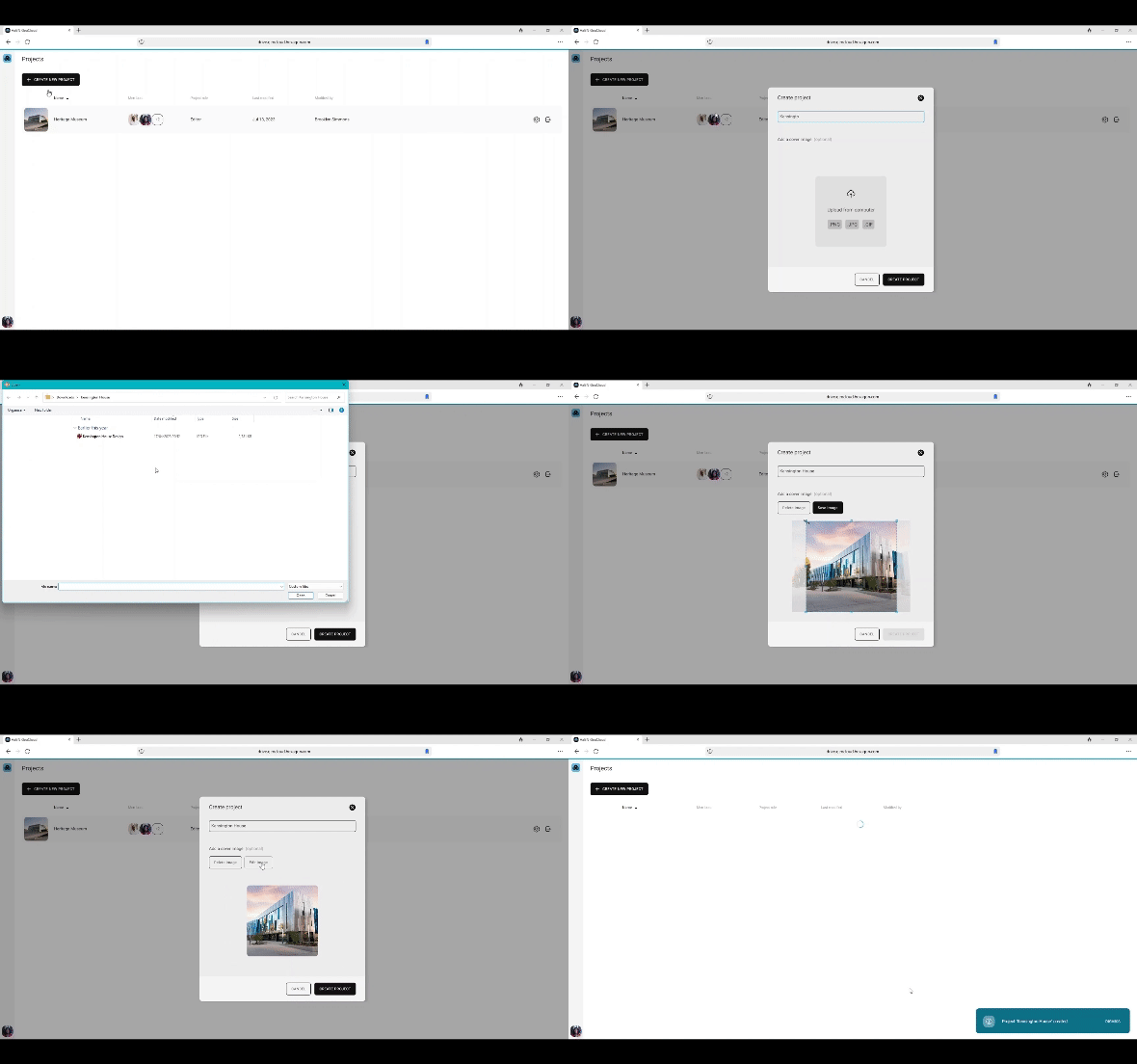
Name your project, upload a cover image, and create your own folder structure. The breadcrumbs in your project folders enable navigation within your folder structure.
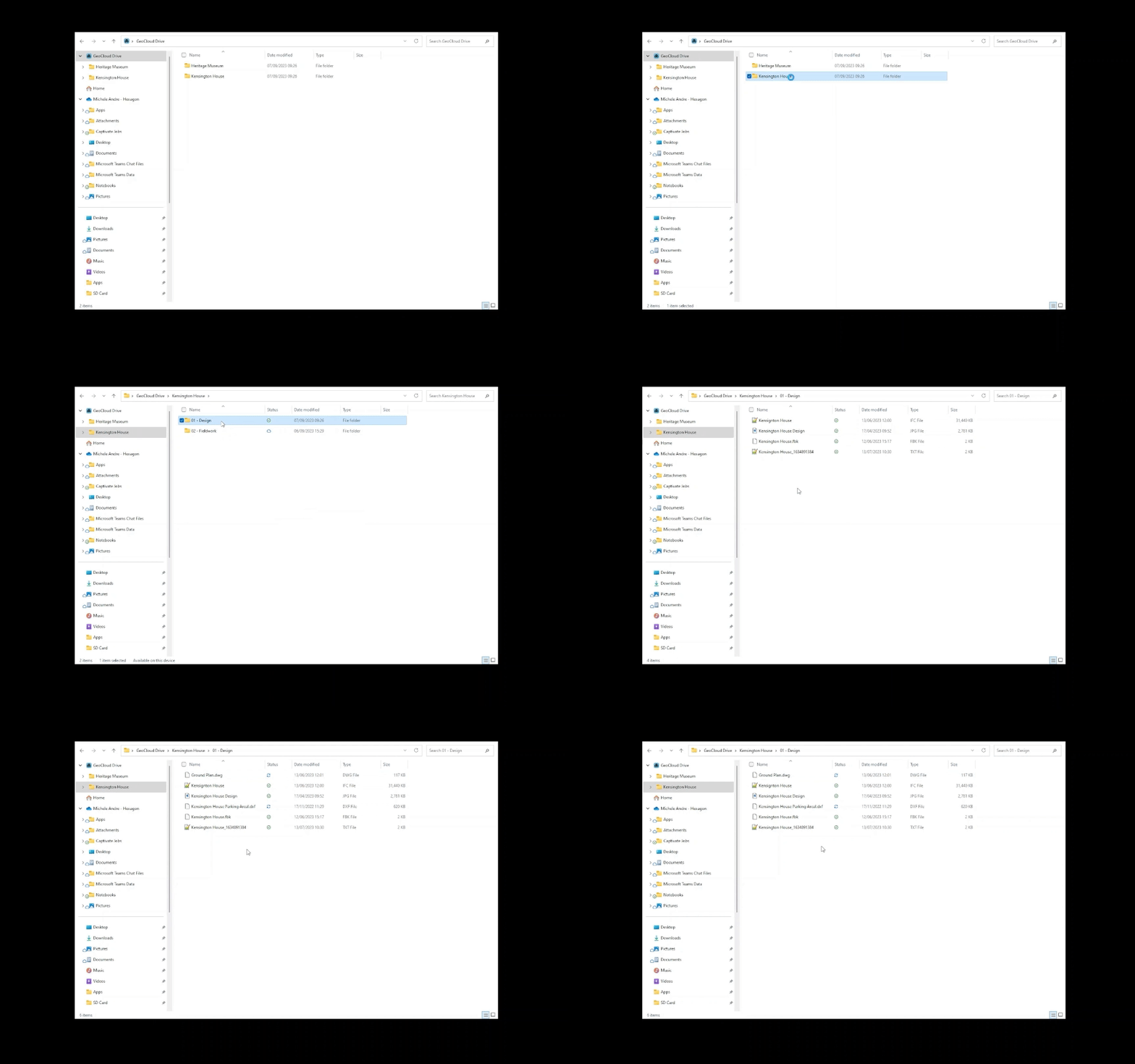
All data uploaded via the Web App, Leica Captivate and Leica iCON field software or an office software is automatically synchronised with the Windows file system of your PC thanks to the Desktop Synchronisation App.
Create a project
Name your project, upload a cover image, and create your own folder structure. The breadcrumbs in your project folders enable navigation within your folder structure.
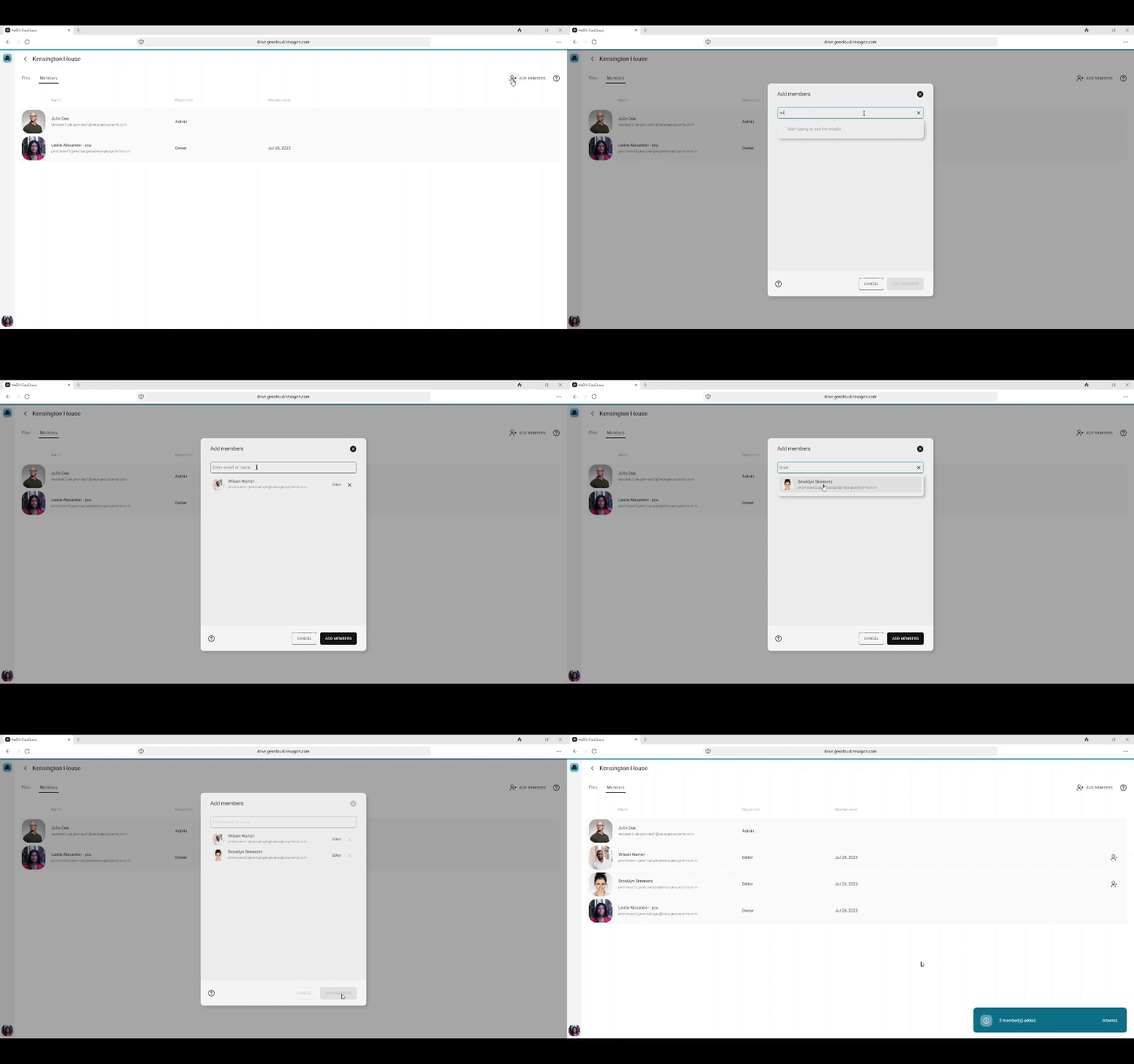
Manage project members
The project owner controls who can access the project by adding or removing members.
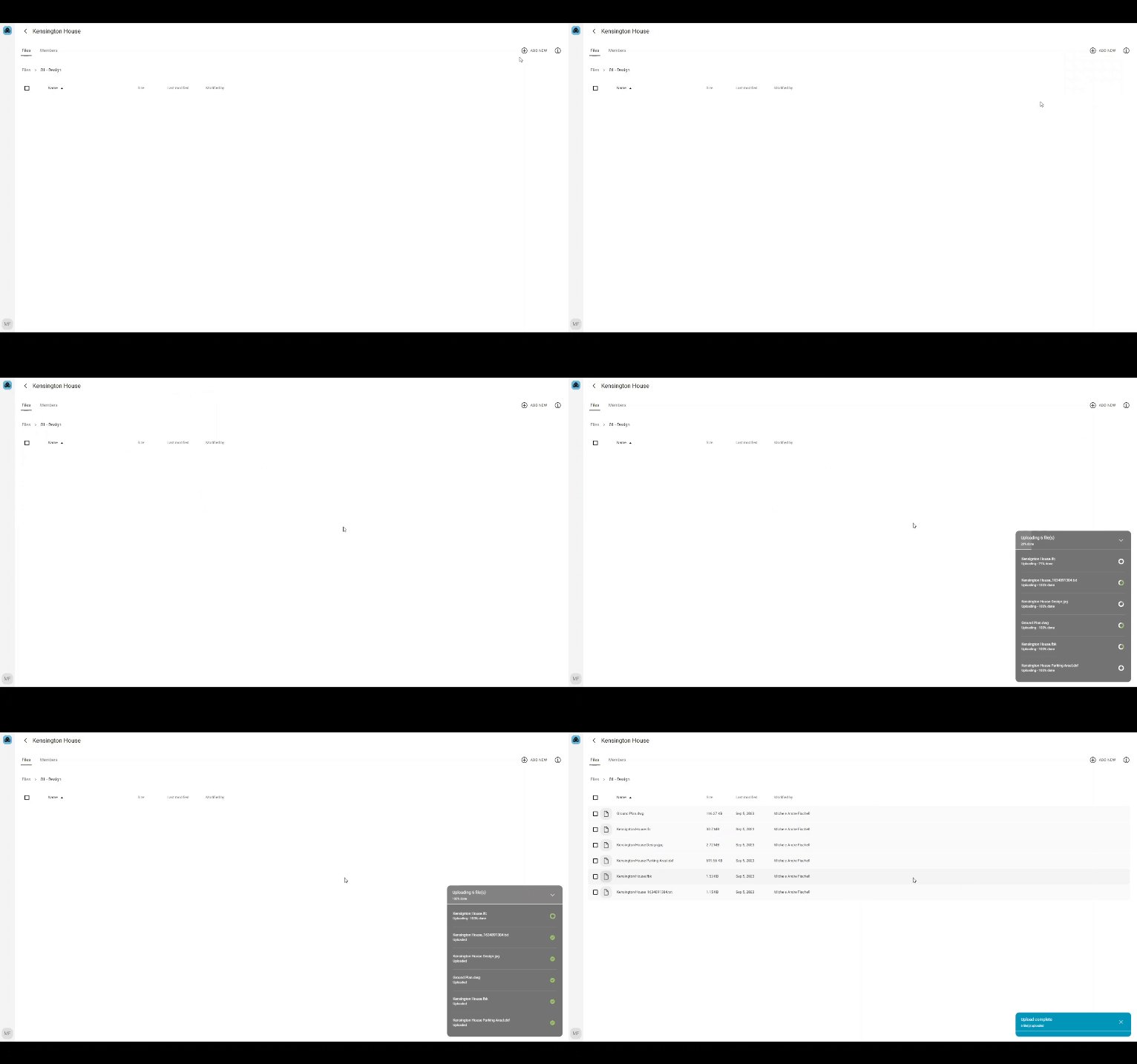
Upload files
Upload data from your PC into the project.
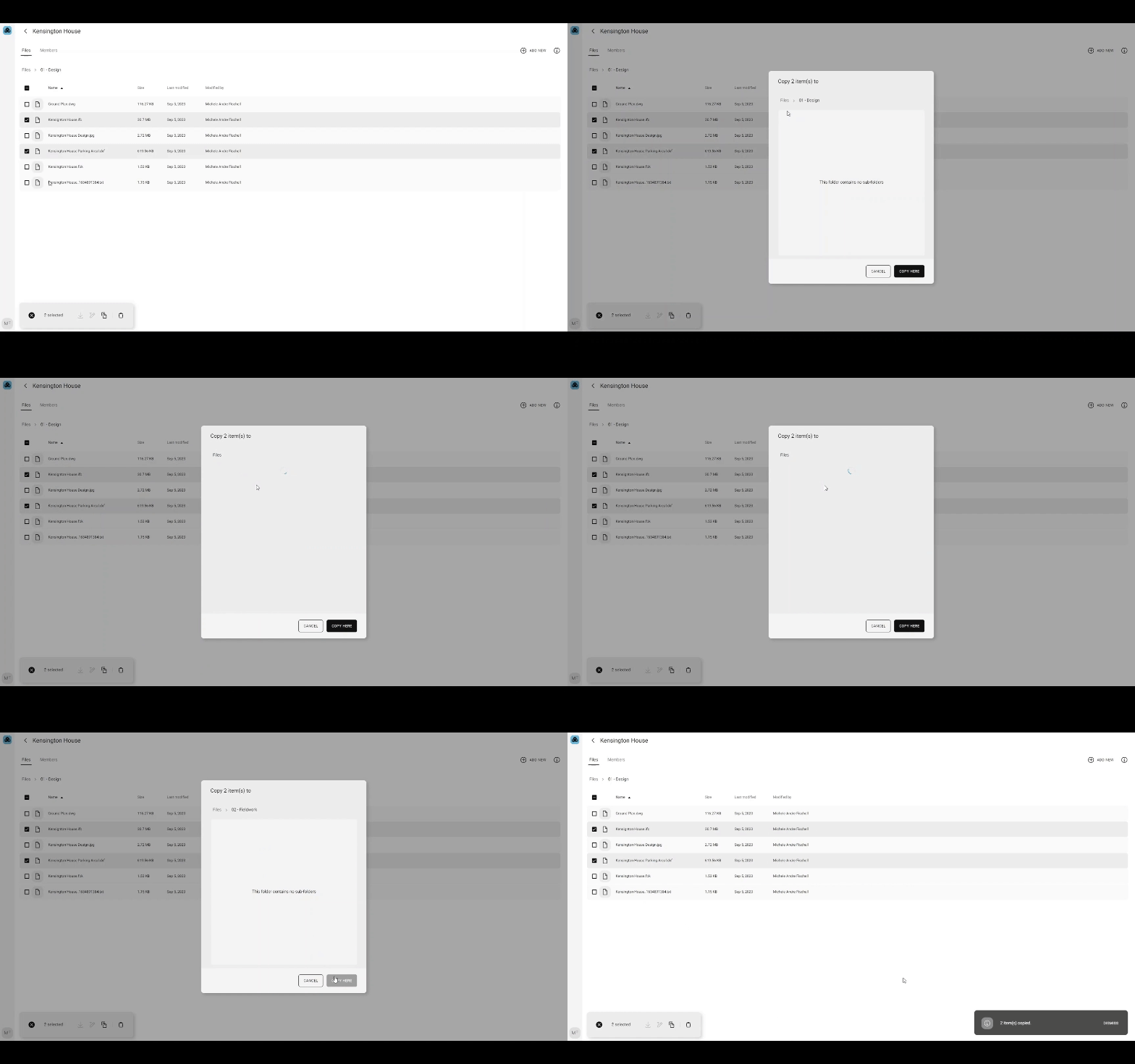
Copy files
Easily copy any file to another project folder within the Web App.
Automatic data synchronisation
All data uploaded via the Web App, Leica Captivate and Leica iCON field software or an office software is automatically synchronised with the Windows file system of your PC thanks to the Desktop Synchronisation App.